
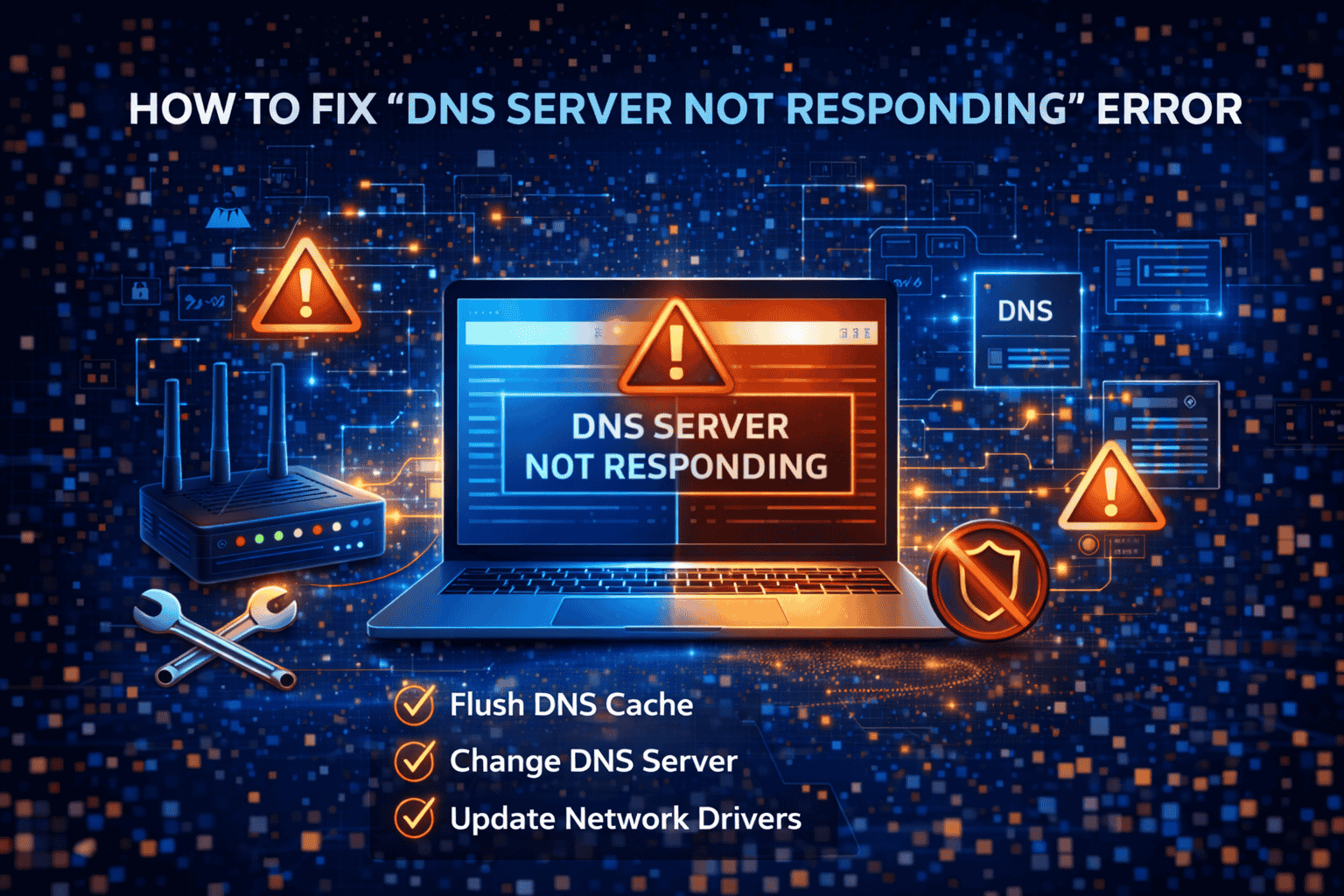
If you have ever tried to open a website and suddenly saw the message “DNS Server Not Responding,” you know how frustrating it can be. This common internet issue prevents your browser from connecting to websites, even when your internet connection seems active.
DNS Server Not Responding Fix
The good news is that this problem can usually be fixed with simple troubleshooting steps. In this complete beginner guide, you will learn what this error means, why it happens, and how to fix it step by step.
What Does “DNS Server Not Responding” Mean?
DNS (Domain Name System) is responsible for converting website names into IP addresses. When the DNS server fails to respond, your device cannot find the correct server for the website you are trying to access.
In simple terms:
👉 Your internet is working, but it cannot locate the website.
DNS Server Not Responding Fix
Common Causes of DNS Errors
Understanding the causes can help you fix the problem faster.
1. Network Connection Issues
Weak or unstable internet connection can interrupt DNS communication.
2. Incorrect DNS Settings
Wrong DNS configuration may prevent proper connection.
3. Router Problems
Sometimes the router may stop responding correctly.
4. Firewall or Antivirus Blocking
Security software can block DNS requests.
5. Outdated Network Drivers
Old drivers may cause connection issues.
DNS Server Not Responding Fix
Basic Fixes You Should Try First
Before applying advanced methods, try these simple solutions.
Restart Your Router
- Turn off the router
- Wait for 30 seconds
- Turn it back on
This refreshes the network.
Restart Your Device
Sometimes temporary bugs cause DNS issues.
Switch to Another Browser
Check if the issue is browser-specific.
Step-by-Step Methods to Fix DNS Error
Now let’s go deeper into solutions.
Method 1 – Flush DNS Cache
DNS cache stores old records which may cause errors.
Steps (Windows):
- Open Command Prompt
- Type: ipconfig /flushdns
- Press Enter
This clears outdated DNS data.
Method 2 – Change DNS Server
Using a reliable DNS server can solve the issue.
Popular DNS:
- Google DNS → 8.8.8.8 / 8.8.4.4
- Cloudflare → 1.1.1.1
Steps:
- Go to Network Settings
- Change DNS manually
- Save settings
Method 3 – Disable IPv6
Sometimes IPv6 conflicts with DNS.
Steps:
- Open Network Settings
- Disable IPv6
- Restart connection
Method 4 – Reset Network Settings
Resetting network removes incorrect configurations.
Steps:
- Go to settings
- Select Network Reset
- Restart device
Method 5 – Disable Antivirus Temporarily
Some antivirus programs block DNS requests.
👉 Turn it off temporarily and check.
Method 6 – Update Network Drivers
Outdated drivers can cause errors.
Steps:
- Open Device Manager
- Update Network Adapter
- Restart system
Fix DNS Error on Mobile
Android / iPhone:
- Turn Airplane Mode ON/OFF
- Restart phone
- Change DNS in WiFi settings
- Reset network settings
When to Contact ISP
If none of the methods work:
- Contact your Internet Service Provider
- Check for service outages
- Ask for DNS reset
Tips to Prevent DNS Errors
- Use reliable DNS servers
- Keep system updated
- Avoid unknown software
- Maintain stable internet connection
- Restart router regularly
Final Thoughts
The “DNS Server Not Responding” error is common but easy to fix. By following the steps in this guide, you can quickly restore your internet connection and continue browsing without interruptions.
Understanding basic networking problems like DNS errors helps you become more confident in handling technical issues.
In 2026, as internet usage grows, knowing these troubleshooting skills is more important than ever.